Pinterest · Canva · Miro · Storyflow

Make the direction
easy to discuss.

A client moodboard needs more than a collection of images. It needs clear intent, the right access and a question someone can answer.

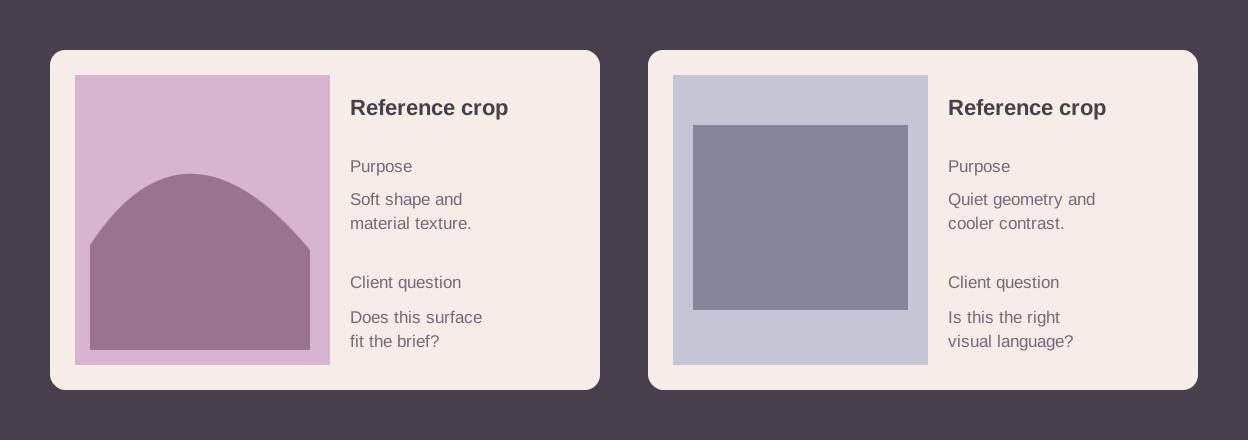
Original illustration of reference crops beside their purpose and client question

Choose the stage
you need to improve.

Choose Pinterest for collecting and organizing discoveries, Canva for a composed presentation, Miro for collaborative board discussion, or Storyflow for a direction kept beside the wider plan. The best choice depends on how the client will view, comment and decide. This comparison uses official documentation checked October 5, 2026; it does not claim account trials or measured approval speed.

Pinterest

A collection before the presentation.

Public boards appear on profiles and in search. Private boards are visible to the owner and invited collaborators; group boards let collaborators add and organize Pins. These are useful discovery and collection behaviors. Official board documentation.

Our recommendation: use it to gather references, then curate the actual client-facing set. A saved Pin does not explain whether you are borrowing its light, composition, material or tone. Keep the original source link and your purpose with the reference when you move it into a presentation.

Do not assume a private board becomes visible to an uninvited recipient just because you send its link. Check the actual intended viewer and collaboration route before the meeting.

Canva

A designed presentation with permission choices.

Link sharing offers view, comment and edit permissions. A comment-only link lets a recipient read existing comments without logging in; replying, adding comments or editing requires login or signup. Official sharing help.

Its file-type help documents PDF options and notes that a PDF containing a cropped image can retain the original uncropped image. Check the actual export when a crop is meant to remove content. Official export help.

Our recommendation: choose it when the page composition and a portable presentation matter most. Use a named version and explicit client question; an attractive layout alone does not record a decision.

Miro

A board for working through the direction together.

Boards distinguish viewing, commenting and editing. The visitor route uses a public link and requires no Miro account, but the allowed actions depend on the plan: Free visitors can view; visitor commenting and editing require paid or Education access. Private guest collaboration is a separate paid-plan route. Official external-sharing documentation.

Our recommendation: use it for a collaborative review session when the participants need a board rather than a finished deck. Set the actual access level and initial view deliberately. A public-link route is forwardable, so decide whether that route fits this client’s materials.

Storyflow

A moodboard connected to the client plan.

The client-moodboard page documents named directions, view-only browser links, comments attached to references and image/PDF export. Viewing needs no account; its FAQ distinguishes signed-in reviewers who leave comments. Official client workflow.

Standalone access is paid-only during early access; invited collaborators join free today. A standalone Free plan is announced for before the end of 2026. This follows the explicit pricing availability statement checked October 5; older indexed marketing describes free access more broadly. No signup test was performed.

Our recommendation: consider it when the direction needs to remain beside the wider plan. Human review still decides what the references mean and what the client has actually agreed.
A clear board
starts with a
clear question.

The reference is evidence of a direction you propose, not a substitute for explaining it.

Keep exploration separate.

Collect widely during research. Before presentation, keep only the references that make a specific point. A small number of clearly different directions can make a discussion manageable; two is useful when there is a real choice, not a required formula for every project.

Say what each image contributes.

Write “soft side light” or “matte material with visible grain,” rather than “like this.” Include what is merely a reference so the client does not read the board as a promise to reproduce an entire image.

Keep the decision attached.

Record the actual feedback, the named version and the unresolved question in your real review workflow. This local tool prepares images and notes; it does not authenticate a reviewer or infer approval.

A material direction

Show the texture crop and say whether the client is choosing surface finish, colour or the object itself. That distinction changes what the team should make.

Original illustrative scenarios, not customer testimonials.

A reference Small original illustration of a reference crop needs a reason.

Choose a meaningful crop

Remove unrelated context when it distracts from the actual point. Keep the full original in your working backup so you can revisit the crop. The PNG board below contains rendered crop pixels; its JSON backup embeds the full decoded images.

Check the client’s access

View access, comment access and editing access are different. Open the intended route before the meeting and choose the appropriate permission. Do not infer that an account-free view also permits anonymous feedback.

Keep a portable version

A static PNG is a snapshot of the board. Save the full JSON and Markdown notes to preserve editable image crops, source links and reasoning. A static file is not a live discussion or an approval log.

Crop the reference.
Keep the reasoning.

Upload PNG, JPEG or WebP images. Cropper.js 1.6.2 provides the real interactive crop editor; native canvas draws the selected pixels and builds a portable PNG board. Full JSON restores images, crop rectangles and notes. No image-generation or approval inference is performed.

Crop the selected reference

Choose a reference to edit its crop.

Selected reference for crop editing

Drag or resize the crop box, or enter an exact in-bounds rectangle. Crop coordinates refer to decoded original pixels. Rotation and mirroring are disabled. If the interactive library is unavailable, full images and validated restored rectangles can still export, while crop editing is disabled.

Upload an image or load the original illustrated example.

Images remain in this page’s memory; no upload or automatic browser storage is implemented. Save JSON before closing. PNG conversion retains decoded pixels rather than original compressed bytes, EXIF or colour-profile metadata. The rendered PNG contains the crops and full notes, while JSON embeds the full images. Large images and long boards need substantial memory; export reports a canvas failure rather than claiming unlimited capacity. Source notes are entered by you and do not verify authorship or permission.

Before sharing

Does cropping remove the original from every export?

The PNG board contains only rendered crop pixels and notes. The JSON backup deliberately includes the full decoded original so you can edit again. Canva’s own help warns that its cropped-image PDF can retain uncropped image content; check the file type and actual export rather than assuming every crop permanently removes information.

Can this collect client comments?

No. It creates a portable reference board and full notes. Use the chosen vendor’s real permission and review workflow to collect decisions. A question written on the PNG is not a received answer.

Are the examples real photos?

No. The demo generates flat geometric illustrations locally and labels them as examples. Your uploaded images provide the actual reference material.

What happens after an invalid restore?

The full candidate is checked, including decoded dimensions and crop bounds, before it replaces the board. A corrupt image or invalid rectangle leaves the current draft intact.

Shape your next client creative direction with Super