Agency resource planning starts with real availability and competing commitments. Choose a planner around that job, then use this worksheet to expose date-by-date overlaps before promising the next project.
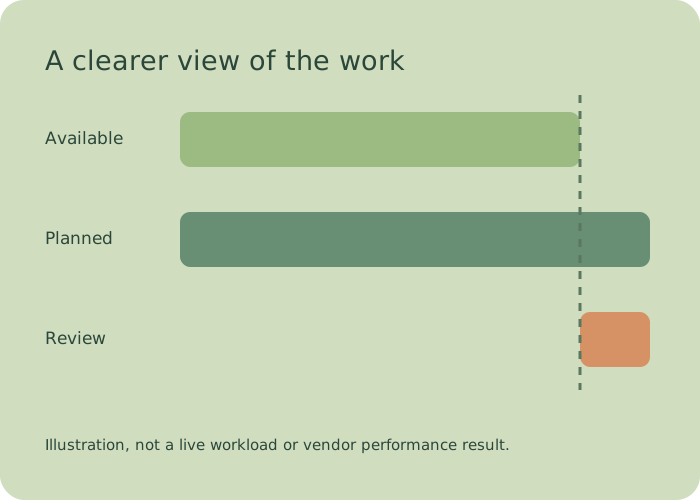
Availability · Work · Leave · Review · Availability · Work · Leave · Review ·
Choose the planning view you need.
Evaluate Float for scheduling work alongside availability. Evaluate Productive when bookings need to sit with the project's budget services. Evaluate Runn when you need a people view across teams, roles and placeholders. Rehearse your actual scenario in the vendor: one person, two overlapping projects and a day away.
Official documentation checked October 5, 2026. This is a source-based workflow comparison; no commercial account tests, vendor performance scores or current pricing are claimed.
Float
Its capacity guide combines working hours and days, approved leave, holidays and existing allocations in the Schedule. Scheduling answers who does the work; capacity planning asks whether they have availability.
Check: each person's working pattern and absence settings before treating unallocated space as available. The schedule should reflect the commitments your team actually maintains.
Its project Resource Planning guide shows bookings and availability, including work on other projects. Bookings in this view apply to services in the project's linked budgets or deals; those services must exist before booking.
Check: that the services, permissions and tentative-booking settings match your planning question. A budget-linked view needs those records maintained.
Its current People Planner guide shows availability and utilization across people, teams and roles, with placeholders for unmet demand and a toggle for tentative projects. Planner availability uses scheduled assignments, including past periods; it differs from reports based on actual hours.
Check: whether you are comparing planned work or actual time, and whether tentative demand is included.
This manual planning worksheet uses Luxon 3.5.0 for actual calendar-date arithmetic. Enter available project hours per person, working weekdays, full-day absences and allocation ranges. The demo is fictional and editable. It never syncs accounts, books staff or predicts task completion.
The selected weekdays apply to all people and allocations. Unselected dates receive no allocations in this worksheet. Full-day absence dates set that person's capacity to zero, but scheduled work on those selected weekdays stays visible as overload. No holidays are inferred; enter them as absence dates. Different per-person workweeks and partial-day leave require a fuller planner.
People and actual availability
Planned allocations
Daily person capacity and commitments
Date
Person
Available h
Planned h
Overload h
Free h
Absence
Allocations
Only the selected window is reported. Allocation dates outside it remain in JSON but do not affect visible totals. CSV and Markdown are generated from this exact daily report. These are planning hours, not worked hours, billing records or contractual commitments.
Make the tradeoff before making the promise.
A team total can hide a real conflict on one person and one day.
Availability needs a definition
Enter hours genuinely available for project work, after the commitments you have chosen to exclude. If internal work is allocated separately, include it consistently. Do not quietly count the same meeting time in both available capacity and an allocation.
Keep absence conflicts visible
A person being away does not automatically move their assignment. This worksheet leaves planned hours visible against zero capacity so you can choose whether to reassign, move or reduce the work.
Spare hours are not interchangeable
Ten free hours on Friday do not resolve an eight-hour clash on Tuesday. Likewise, another person's availability does not prove they have the right skill or approval. Review the actual day and person before changing the plan.
Keep the system of record current
Use a local scenario to discuss the change, then update the real planner with the agreed facts. A worksheet export is not proof that the team received or accepted a new assignment.
Review the next commitment.
Does the right person have capacity on the required day?
Plan locally. Commit deliberately.
Dates are calendar dates interpreted in UTC for consistent date stepping; this is not a time-of-day or timezone booking system. Work is evenly assigned at the entered hours per selected weekday inside each inclusive range. Your plan is not automatically saved. Export JSON to retain it; restoring a valid file replaces the current plan. If Luxon fails to load, the comparison stays readable and the worksheet reports that date calculation is unavailable.